

Video Thumbnail

Simple banking, wherever you are

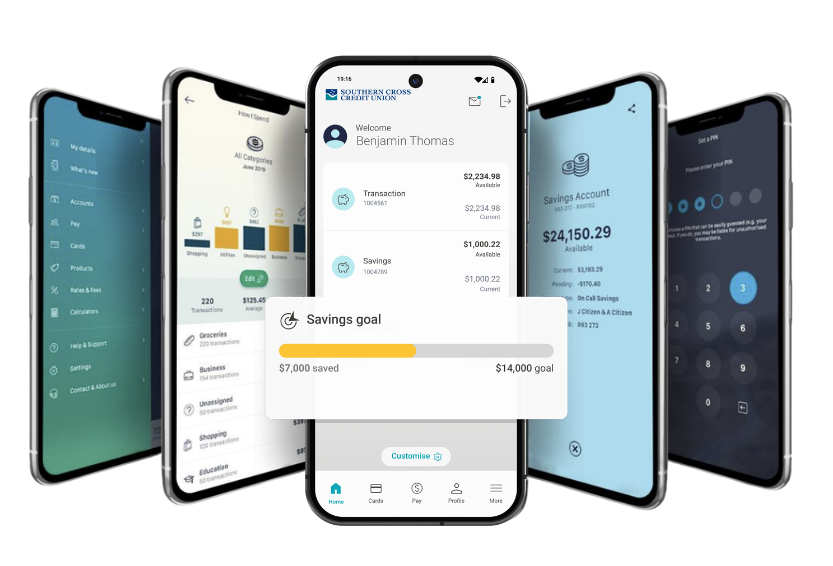
The SCCU mobile app gives you the freedom to manage your money on the go. Secure, easy to use, and packed with handy features. You can check your balance, make payments, transfer funds, and manage your cards, all from your smartphone.

Whether you’re paying bills, sending money, or checking your spending, our mobile app lets you manage your banking needs anytime, anywhere. Download the SCCU App today and take your banking with you.


Simple, Secure Login

Enjoy fast and secure access with your choice of login: PIN, pattern, or biometric options like Face ID or fingerprint. You’re in control of how you log in, with security that keeps your information protected.

Simple, Secure Login

Manage Your Money Anywhere

Check balances, view transactions, transfer funds, and pay bills all from your phone. Whether it’s moving money between accounts or making an Osko payment, you can bank with ease wherever you are.

Manage Your Money Anywhere

Card Control at Your Fingertips

Activate a new card, change your PIN, or temporarily lock your card if it’s misplaced, all within the app. Managing your cards has never been simpler or safer.

Card Control at Your Fingertips

Stay on Top of Your Spending

Set savings goals, track your spending, and gain insights into where your money goes. It’s banking designed to help you stay organised and feel confident about your finances.

Stay on Top of Your Spending
mobile app page

What you can do
with the SCCU mobile app

Banking made simple, all from your phone:

  • Log in quickly and securely using Face ID, fingerprint, PIN, or pattern.
  • Check balances and view recent transactions in real-time.
  • Transfer money or make fast payments with Osko.
  • Pay bills and manage your payees on the go.
  • Activate, lock, or change the PIN on your cards instantly.
  • Track your spending and set savings goals.
  • Update your contact information with ease.

New to the SCCU mobile app?

Getting started is simple, follow these steps:

  1. Download the app
    Search Southern Cross Credit Union in the App Store (Apple) or Google Play (Android) and install the SCCU Mobile App on your smart device.
  2. Log in or register
    If you already have NetBanking, just log in with your existing Customer ID and password. If you’re new to SCCU, register for NetBanking first. Once your NetBanking registration is complete, you’ll be able to start using our mobile app.
  3. Set up quick access
    After you log in, enable quick, secure access with Face ID, Touch ID (iOS), fingerprint (Android), PIN or pattern.
Download for Google Download for Apple

How-to guides

Get more familiar with your SCCU Mobile App and explore these quick how-to guides. Step-by-step instructions make mobile banking simple.

Tip: Click to drop-down each guide for all the steps and explore our FAQs for additional guidance.

  • 1How to log in to the SCCU Mobile App

    How to log in to the SCCU Mobile App

    To access your banking securely from your device:

    1. Open the SCCU Mobile App on your smartphone.
    2. Enter your Customer ID and password, or use a quick login option like Face ID, fingerprint, PIN or pattern.
    3. Tap Login.
    4. Once logged in, you’ll see your account overview and available balance right on the home screen.


    Tip: You can change your login preferences anytime under Settings > Login & Security.

  • 2How to check your accounts and transactions

    How to check your accounts and transactions

    Stay up to date with your balances and activity:

    1. Log into the SCCU mobile app.
    2. From the home screen, tap Accounts to see your full list of accounts.
    3. Select an account to view transaction history and pending payments.
    4. Tap any transaction for more details or to share transaction information.
    5. Use the Search or Filter options to find specific transactions.

    Tip: You can also enable Quick Balance to check your balance without logging in.

  • 3How to make a payment or transfer money

    How to make a payment or transfer money

    Pay bills or transfer money in just a few taps:

    1. Log into the app and select Pay from the main menu.
    2. Choose Transfer between accounts or Pay Anyone.
    3. Select the account to pay from, and enter payment details (PayID, BSB/Account, or BPAY).
    4. Review the details and tap Confirm to complete your payment.
    5. Share or save your payment receipt if needed.

    Tip: You can also schedule future or recurring payments to make managing your finances easier.

  • 4How to manage your card

    How to manage your card

    Control your card’s security anytime, anywhere:

    1. Tap Cards from the bottom menu.
    2. From here, you can:
      • Activate a new card.
      • Lock or unlock your card temporarily.
      • Change your PIN.
    3. Report a lost or stolen card and order a replacement.
    4. To receive real-time notifications, turn on Card Transaction Alerts.

    Tip: If you have Apple Pay, you can add your card directly to your digital wallet from the app.

  • 5How to set up a savings goal

    How to set up a savings goal

    Reach your financial goals faster:

    1. Open the app and go to Savings Goals from the menu.
    2. Tap Create Goal and name your goal.
    3. Enter your target amount and choose the linked account.
    4. Save your goal: you’ll be able to track your progress anytime.

    Tip: You can also set up a savings goal when opening a new account in the app.

Join our SCCU community along with thousands of customers who love our easy to understand banking services and caring customer approach.

mobile App 1

Mobile Banking FAQs

  • How do I add or edit payees and biller details?

    While viewing your accounts, click on ‘Pay’ and select ‘Manage Payees’. This will redirect you to the Address Book page where you can add a new payee or select an existing payee/biller you want to edit and follow the on-screen prompts.

  • How can I view Southern Cross Credit Union products in the app?

    If on the homepage, click on the top menu and select Products to view our most popular product pages and explore key information. If navigating from one of your accounts, click on the homepage icon at the top (a little house) and repeat the steps above.

    For a more detailed view on our products and additional services we offer, we recommend you navigate our website as not all information will be available in the app.

  • Can I set savings goals in the app?

    Yes. Whether you’re saving for a holiday, wedding, or a new home, you can easily set up a savings goal to help you stay on track.
    Click on ‘Settings’ from the top menu on the homepage, turn the ‘Savings Goal’ feature on and click on ‘Manage Savings Goal’ to create yours.

  • Why is Face ID not working after the latest app upgrade?

    With the new version, Face ID is now a separate feature. You’ll need to uninstall and reinstall the app to enable it again.

Netbanking 4

Safe & Secure Banking

Your security is our top priority. Our Mobile App is protected with:

  • One Time Password integrated (optional)
  • Data encryption and secure servers
  • Automatic logout after inactivity
  • The ability to change your password at anytime

Tips to protect yourself online:

  • Never share your password or PIN
  • Avoid public Wi-Fi when banking
  • Recognise and report phishing or scam attempts
  • Keep your contact details up to date via ‘Settings’ >> ‘View Contact Details’

Stay Up to Date

View all blogs
4 mins
Sticking to your Financial Goals for 2025

With a new year, comes new year’s resolutions. Was one of your new year’s goals financially driven? If so, you are part of 52% of Australians who have set financial goals. However, only 1 in 8 of us manage to stick to them . In this blog, we look...

With a new year, comes new year’s resolutions. Was one of your new year’s goals financially driven? If so,...

Read More
4 mins
The 3-jar method to help kids learn about mon...

It is never too early or too late for parents to start educating their children when it comes to finance, and teaching kids and teenagers about money doesn’t need to be boring or challenging. Helping them earn their own money, setting expectations and guiding them on real life decisions...

It is never too early or too late for parents to start educating their children when it comes to...

Read More
7 mins
10 Things You Can Do to Future-Proof Your Fin...

Finances can be quite overwhelming, especially in this ever-changing financial climate we currently find ourselves in. To make things easier, our team at SCCU compiled a list with 10 easy-to-follow steps you can take to help future-proof your finances. 1 – Budget like a boss and track your spending Life can...

Finances can be quite overwhelming, especially in this ever-changing financial climate we currently find ourselves in. To make things...

Read More
3 mins
Our Mobile App Upgrade
Is Live In Store!

It’s finally here, and we’re excited! Our newly upgraded SCCU app will make your mobile banking, that much easier. With a new look and feel, the app also has a range of upgraded features and functionality for you to manage your banking on the go. What’s new? Upgraded security access, including pin,...

It’s finally here, and we’re excited! Our newly upgraded SCCU app will make your mobile banking, that much easier. With a...

Read More
Shane provided amazing customer service from start to finish. He was extremely knowledgeable, respectful, and attended to every detail of the process with thoroughness and professionalism. This kind of customer service is almost unheard of these days, so it was an absolute delight to work with Shane. The interest rate on my company car was fantastic and the terms of the loan were both fair and reasonable. I 100% recommend Shane and Southern Cross Credit Union for obtaining financing for a vehicle and wouldn't use anyone else for my business going forward. Thanks to Shane and his team!
Joanna Tedeschi
Previously we were not advocates of the banking industry, we were strong non-believers after some disappointing & negative experiences. Many locals referred us to Southern Cross Credit Union (SCCU) and after much encouragement we moved our banking business to the SCCU Tweed City Branch. We are now strong believers as we have been in the extremely efficient, effective and supportive hands of SCCU loans manager Stephen Distant. What an asset! Stephen has totally reframed our banking experience, we are genuinely impressed with his ability to do this by managing our loans. Even after many years as a SCCU client, Stephen's dedication with helping us has not died down, his loyalty remains nothing short of inspiring and his willingness to provide outstanding customer service is something we are in awe of. Moving our accounts to SCCU was a great decision, thanks to Stephen Distant.
Rod and Suzy Cornelius
As COVID hit some 3 years ago, I approached SCCU to re-align our financial position at both a personal and professional level with our business. Not only were your team receptive but with the assistance of SCCU not only did we make our way through COVID closures, but due to the support of SCCU we have evolved into an extremely sound business, and I would suggest a success story of the community banking that SCCU continues to deliver. Thank you for the support you offer to us as a local business and us as a local family of the area. Thank you, the entire team, at SCCU for being such an awesome part of the community whilst also being a great business to align with.
Jason