Track your spending

Keep on top of your finances with easy-to-read statements, real-time balances, and personalised spending insights.

Track your spending

Pay bills & transfer money

Move your money safely and easily. Whether it’s paying bills, sending to family, or transferring between accounts.

Pay bills & transfer money

Manage your cards

Lock, unlock, or replace your cards instantly for added control and peace of mind.

Manage your cards
Video Thumbnail

An easy way to do your banking

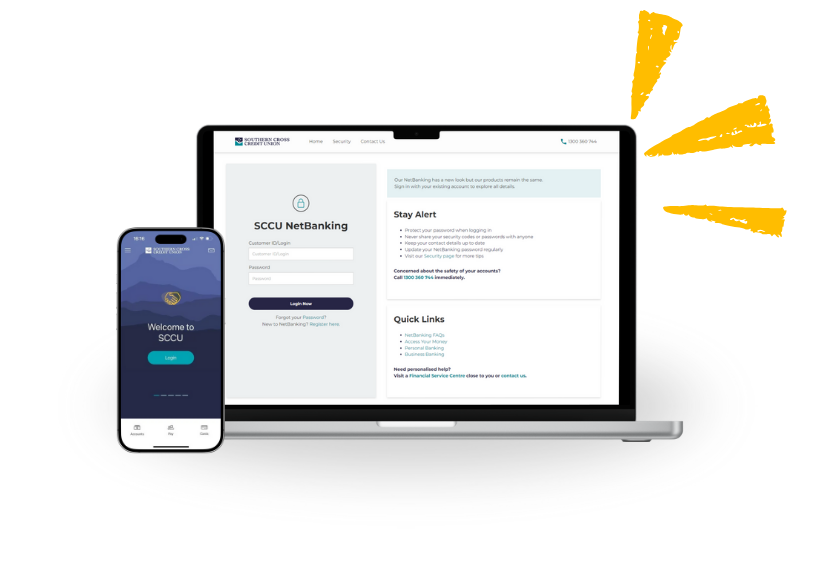
Our NetBanking provides a free, secure and convenient way for you to manage your banking online. With the ability to check your accounts, make safe payments, access your statements and open new accounts, you’ll enjoy the freedom to bank from anywhere and in your own time.

You can access your NetBanking from your tablet, desktop computer or laptop and phone. By registering for NetBanking you can also download the SCCU Mobile App and have all your banking needs in your pocket.


What You Can Do with NetBanking

Make the most of your money, all in one place:

  • Check balances & transaction history in real-time
  • Transfer money between accounts or to others
  • Pay bills with BPAY or scheduled payments
  • Set up recurring payments to simplify your finances
  • Access eStatements and account documents securely
  • Manage your cards: lock, replace, or change your PIN
  • Update your contact details and personal info
  • Open additional transaction and savings accounts

New to NetBanking?

It’s easy to register, simply follow these steps:

  1. Have your account details ready
  2. Register online in minutes – by filling out the ‘Registration Form’
  3. Or call us direct at 1300 360 744

Important Notes:

  • Within 24 hours of your form being received by SCCU (excluding weekends and public holidays), we will contact you to setup your initial NetBanking password and complete your registration. You will be unable to use NetBanking until this is complete
  • To access NetBanking, go to the SCCU website and select ‘NetBanking Login’ from the menu

When accessing NetBanking the first time, you will be prompted to change your access code to one of your choice. Passwords must be kept secure and must not contain personal information that may be easy to guess such as family names and special dates, and common words.

Register Now

How-to guides

Get more familiar with your NetBanking and check out these how-to guides. Step-by-step instructions make banking simpler.

Tip: Drop down each guide for all the steps or explore our FAQs for guidance.

  • 1How to check my accounts?

    How to check my accounts?

    To get a full overview on your accounts, follow these steps:

    • Log into your NetBanking; your NetBanking will automatically open on your ‘Accounts’ page
    • Alternatively, select ‘Accounts’ in the top menu >> Select ‘Accounts’ again in the drop-down menu to see a birds-eye view of all accounts
    • To see your latest transaction details, click on the account of your choice or select the green drop-down arrow on the right side of the accounts tab
    • You can get a full view of each account by clicking ‘View all Transaction and Account Details’. Alternatively, select ‘Accounts’ on the main menu and ‘Transactions/Account Details’ in the drop-down menu.
  • 2How to check my transaction details?

    How to check my transaction details?

    Once in the Transaction/Accounts Details page, here is how you can use the key features to explore all your transaction details:

    • Once on the page, you will see two tabs: ‘Transaction’ and ‘Account Details’
    • ‘Transaction’ tab gives you a live balance and all debit and credit transactions overview – click on them for more details
    • Quick Search’ = quickly look up a transaction in your history by searching the dollar amount or the description
    • ‘Advanced Search’ = look up a transaction that requires more information such as a cheque number
    • ‘Download’ = Download your account transaction history from a filtered date range into a file format of your choice – there a 4 available
    • ‘Account Details’ tab gives you a view of your account number and funds details.
  • 3How can I make payments/transfer money?

    How can I make payments/transfer money?

    To transfer money between accounts or to other external accounts, follow these steps:

    • Log into your NetBanking
    • Select ‘Payments’ in the top menu
    • Select ‘Transfer Money’ at the drop-down menu if you wish to do a direct transfer. Fill out the transfer details and confirm your transaction
    • If you wish to complete a payment using BPAY code, simply select ‘BPAY’ in the drop-down menu. Fill out the transfer details and confirm your transaction
    • ‘International Payments’, other payment alternatives and services such as your ‘Address Book’ for existing and new payees’ registration are also available in the same drop-down menu under ‘Payments’.
  • 4How can I open new accounts from NetBanking?

    How can I open new accounts from NetBanking?

    Opening a new Easy Access Transaction account or Star Saver account is easy, follow these steps:

    • Log into your NetBanking
    • Select ‘Products’ in the top menu
    • Select ‘New Account’ in the drop-down menu
    • Make sure you read the orientation and gather all information, then click ‘Next’
    • Select the type of account you want to open in the drop-down menu on the page
    • Confirm your customer details and click on ‘Applicant Details’ to include your Tax File Number information
    • If required, include co-applicant details – i.e. for joint account holders you will need their NetBanking login details
    • Press ‘Next’ to review the new account details and ‘Confirm’
    • It might take a few hours, but you will see your new account in your ‘Accounts’ tab.
  • 5How can I view and download my statements?

    How can I view and download my statements?

    You can view your online statements at any time, create transactions lists and manage how you receive your statements via NetBanking:

    • Log into your NetBanking
    • Select ‘Accounts’ in the top menu
    • Select ‘Statement’ in the drop-down menu
    • Once in the Statement page, you can use the drop-down menu to select your action between ‘Online Statements’ or to ‘Create a Transaction List’
    • Online Statements: are your monthly generated statements – here you can select into each one and download
    • Transaction List: here you can filter statements into your desired date-range for all or any of your accounts

    Note: you can opt-in to have digital statements by going to ‘Settings’ in the main menu >> ‘Statement Options’ in the drop-down menu

Join our SCCU community along with thousands of customers who love our easy to understand banking services and caring customer approach.

NetBanking FAQs

  • I’ve forgotten my password.

    If your account is set with a 2-Factor Authentication, simply go to NetBanking login page and click on ‘Forgot your Password?’ and follow the steps to reset your password online.

    If you don’t have a 2-Factor Authentication set for your account, call us on 1300 3260 744 during business hours: Mon-Fri 9am – 5pm and on Wed 9:30am-5pm. If you are overseas, contact us at +61 0755242411.

  • Can I open accounts online?

    Yes, you currently can open our Easy Access transaction account and our Star Saver savings account via NetBanking. Once you have logged in, simply go to ‘Products’ in the top menu, select ‘New Accounts’ and follow the instructions.

    If not logged into NetBanking, you can apply online for all our personal banking accounts and loans via the product pages on our website.

  • I need to activate my debit card.

    You can activate your Visa debit card online. Log in to NetBanking and go to ’Accounts’, select ‘Card Activation’ and enter the details of your card, following the prompts. You can also call our Customer Service Centre at 1300 360 744 or visit your nearest Financial Service Centre.

  • I can’t download my account statement.

    Statements are directly downloaded into your Download Folder. In some cases, downloaded statements will also automatically open in a new window in your browser.

    If you can’t find the statements in your browser or Download folder, you must adjust your browser settings to enable popups from the NetBanking site. If you still experiencing issues, please contact us at 1300 360 744.

  • How much can I transfer through NetBanking?

    To limit the potential impact of fraudulent transactions NetBanking transactions are limited to $5,000 per day across all accounts. If you need to increase your daily limit, please contact us to discuss.

  • Can I personalise my account names?

    Yes, you can give your accounts personalised names or ‘nicknames’ – i.e. a Star Saver could be called ‘Holidays’, or an Easy Access Offset Account could be ‘pay my mortgage faster’.

    Once logged into NetBanking, you can select ‘Settings’ in the top menu, then ‘Account Settings’ in the drop-down menu and follow the prompts.

  • What's BPAY® and how do I set it up?

    BPAY is an electronic bill payment system in Australia, allowing payments through online, mobile, or telephone banking to registered billers. It’s convenient for paying taxes, utilities, credit cards, and more. You can make one-off or recurring payments, receiving unique codes for tracking.

  • How do I add a BPAY® biller?

    BPAY Billers can be set up via NetBanking. Simply login to your NetBanking, select ‘Payments’ in the main menu, then ‘BPAY’ in the drop-down menu. On the page, click on the ‘To’ field to either search for an existing registered Biller or select ‘New Biller’ to add a new.

  • Which bills can I pay via BPAY®? Are there any minimum or maximum limits that apply?

    BPAY limits can apply but these are set by the receiving companies themselves.  If you wish to make a BPAY payment, we recommend you contact the business directly to confirm their credentials and any possible payment limits.

  • What are eStatements/online Statements?

    These are your regular bank statements digitally available to you via your NetBanking and are often called Online Statements.

    We encourage our customers to choose online statements over paper statements as a way to contribute to our environmental focus by helping us reduce paper consumption. These statements are easy to access and available anytime to view or download.

  • What is my Customer ID for Internet Banking/NetBanking?

    A Customer ID (also referred as Customer Number) is a unique identifier number you are set up with when you open an account with us. You can use the Customer ID for logging into NetBanking and to open additional accounts/apply for loans as an existing customer.

  • What do I do if I’ve forgotten my Customer ID?

    If you don’t remember your Customer ID/Customer Number, please contact our Customer Service Centre at 1300 360 744 or visit your local Financial Service Centre.

  • When I go to the login page, it just comes up blank. How can I login?

    Try using a different browser, for example, Mozilla Firefox. You may also need to adjust your privacy settings, see below.

  • When I try to login a message immediately says my session has expired.

    Your privacy settings may be set too high. The privacy setting determines how cookies are handled on your computer. If you have changed your privacy settings from the default medium setting, you will need to go back into Internet Options and change the settings back to default. The login page and password function should then operate correctly.

    Cookies must be enabled to use the site. Our server uses cookies to protect the security of your NetBanking session. If you continue to have problems after enabling cookies, try a different browser like Mozilla Firefox or Google Chrome.

Safe & Secure Banking

Your security is our top priority. NetBanking is protected with:

  • Multi-factor authentication
  • Data encryption and secure servers
  • Automatic logout after inactivity
  • Change your password anytime


Tips to protect yourself online:

  • Never share your password or PIN
  • Avoid public Wi-Fi when banking
  • Recognise and report phishing or scam attempts
  • Keep your contact details up to date via ‘Settings’ >> ‘View Contact Details’

Stay up to date

See all Blogs
4 mins
Sticking to your Financial Goals for 2025

With a new year, comes new year’s resolutions. Was one of your new year’s goals financially driven? If so, you are part of 52% of Australians who have set financial goals. However, only 1 in 8 of us manage to stick to them .In this blog, we look...

With a new year, comes new year’s resolutions. Was one of your new year’s goals financially driven? If so,...

Read More
4 mins
The 3-jar method to help kids learn about mon...

It is never too early or too late for parents to start educating their children when it comes to finance, and teaching kids and teenagers about money doesn’t need to be boring or challenging. Helping them earn their own money, setting expectations and guiding them on real life decisions...

It is never too early or too late for parents to start educating their children when it comes to...

Read More
7 mins
10 Things You Can Do to Future-Proof Your Fin...

Finances can be quite overwhelming, especially in this ever-changing financial climate we currently find ourselves in. To make things easier, our team at SCCU compiled a list with 10 easy-to-follow steps you can take to help future-proof your finances.1 – Budget like a boss and track your spendingLife can...

Finances can be quite overwhelming, especially in this ever-changing financial climate we currently find ourselves in. To make things...

Read More
3 mins
Our Mobile App Upgrade
Is Live In Store!

It’s finally here, and we’re excited! Our newly upgraded SCCU app will make your mobile banking, that much easier. With a new look and feel, the app also has a range of upgraded features and functionality for you to manage your banking on the go. What’s new?Upgraded security access, including pin,...

It’s finally here, and we’re excited! Our newly upgraded SCCU app will make your mobile banking, that much easier. With a...

Read More
Shane provided amazing customer service from start to finish. He was extremely knowledgeable, respectful, and attended to every detail of the process with thoroughness and professionalism. This kind of customer service is almost unheard of these days, so it was an absolute delight to work with Shane. The interest rate on my company car was fantastic and the terms of the loan were both fair and reasonable. I 100% recommend Shane and Southern Cross Credit Union for obtaining financing for a vehicle and wouldn't use anyone else for my business going forward. Thanks to Shane and his team!
Joanna Tedeschi
Previously we were not advocates of the banking industry, we were strong non-believers after some disappointing & negative experiences. Many locals referred us to Southern Cross Credit Union (SCCU) and after much encouragement we moved our banking business to the SCCU Tweed City Branch. We are now strong believers as we have been in the extremely efficient, effective and supportive hands of SCCU loans manager Stephen Distant. What an asset! Stephen has totally reframed our banking experience, we are genuinely impressed with his ability to do this by managing our loans. Even after many years as a SCCU client, Stephen's dedication with helping us has not died down, his loyalty remains nothing short of inspiring and his willingness to provide outstanding customer service is something we are in awe of. Moving our accounts to SCCU was a great decision, thanks to Stephen Distant.
Rod and Suzy Cornelius
As COVID hit some 3 years ago, I approached SCCU to re-align our financial position at both a personal and professional level with our business. Not only were your team receptive but with the assistance of SCCU not only did we make our way through COVID closures, but due to the support of SCCU we have evolved into an extremely sound business, and I would suggest a success story of the community banking that SCCU continues to deliver.Thank you for the support you offer to us as a local business and us as a local family of the area. Thank you, the entire team, at SCCU for being such an awesome part of the community whilst also being a great business to align with.
Jason